

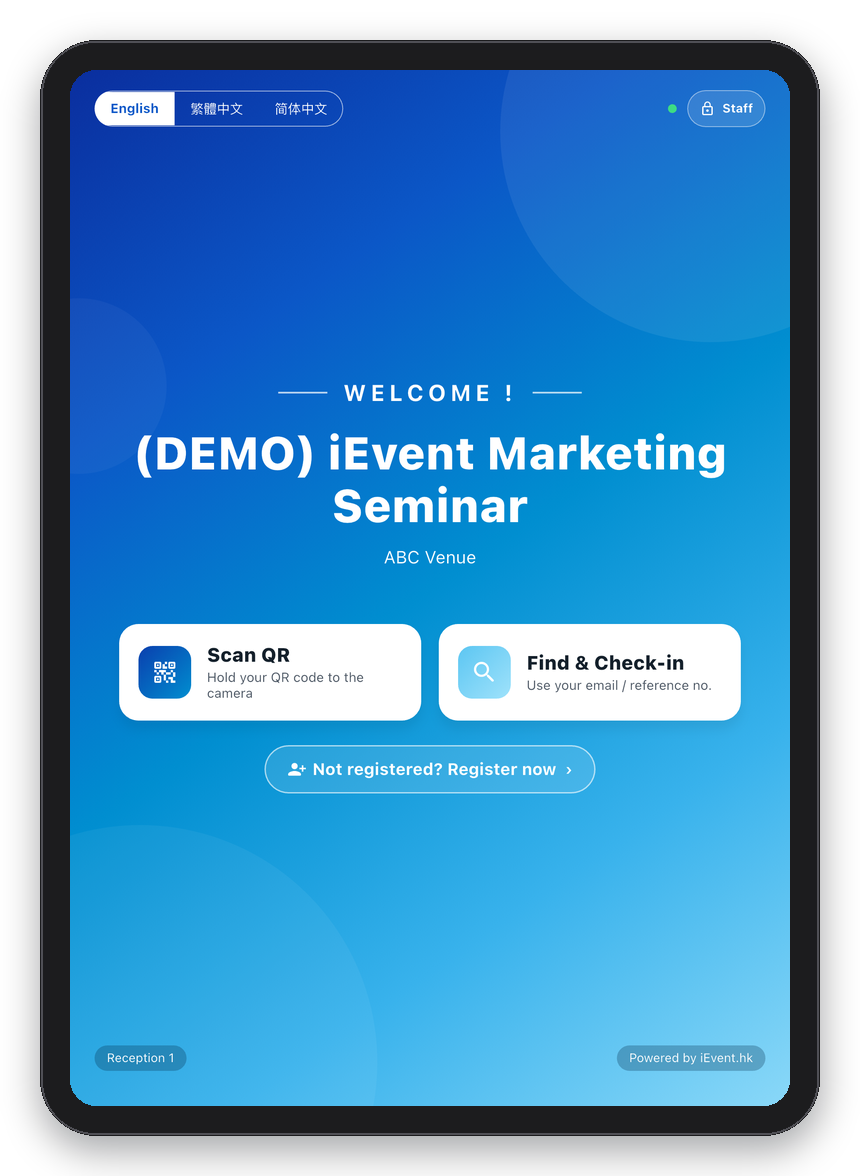
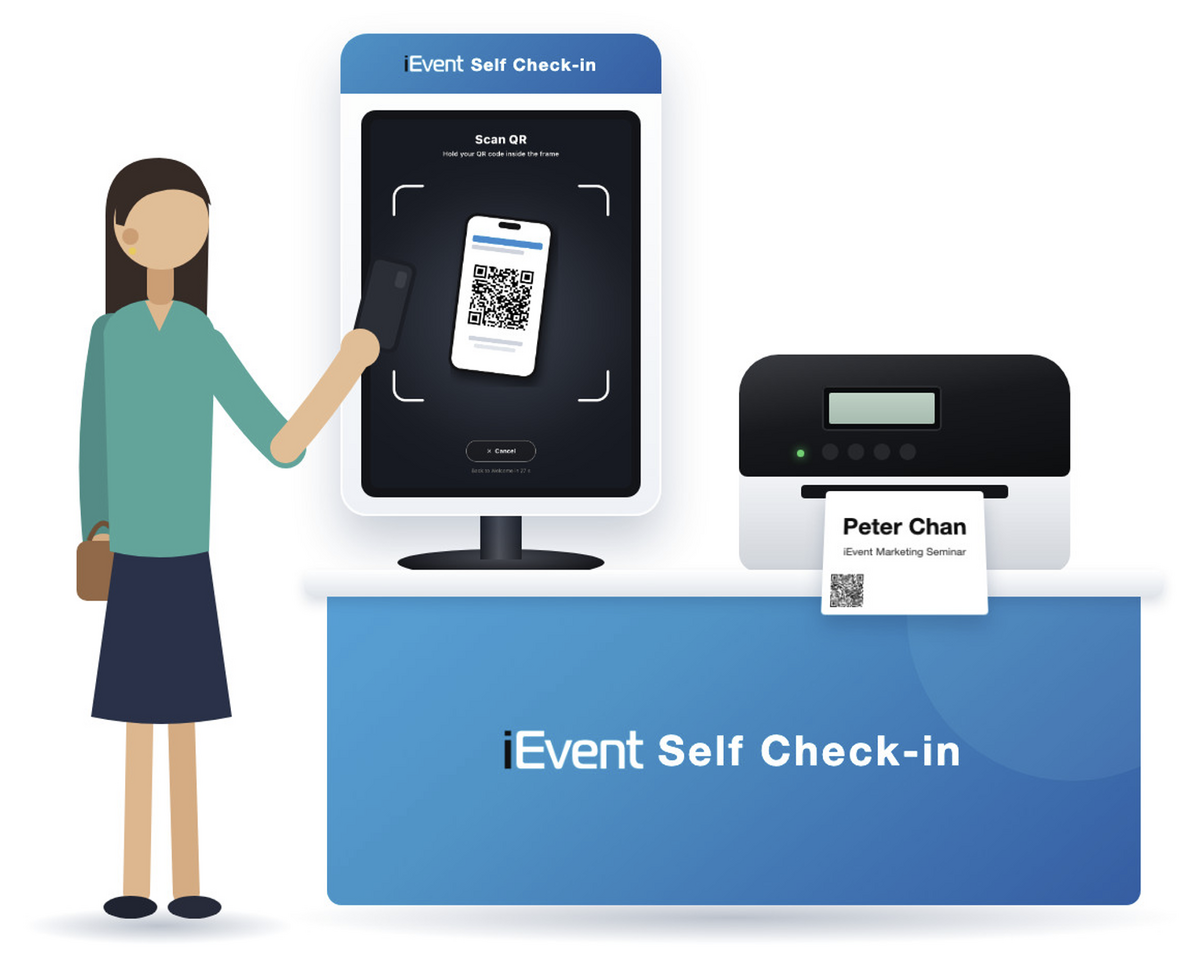
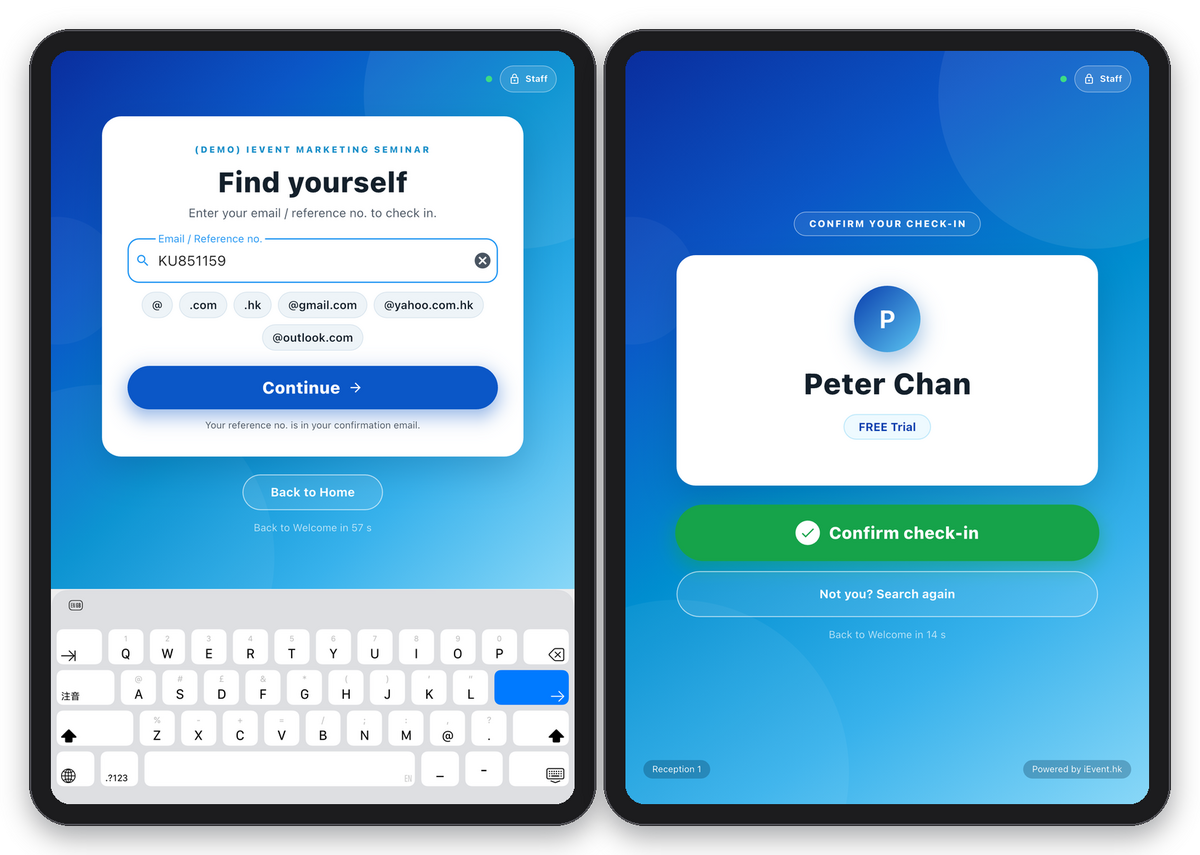
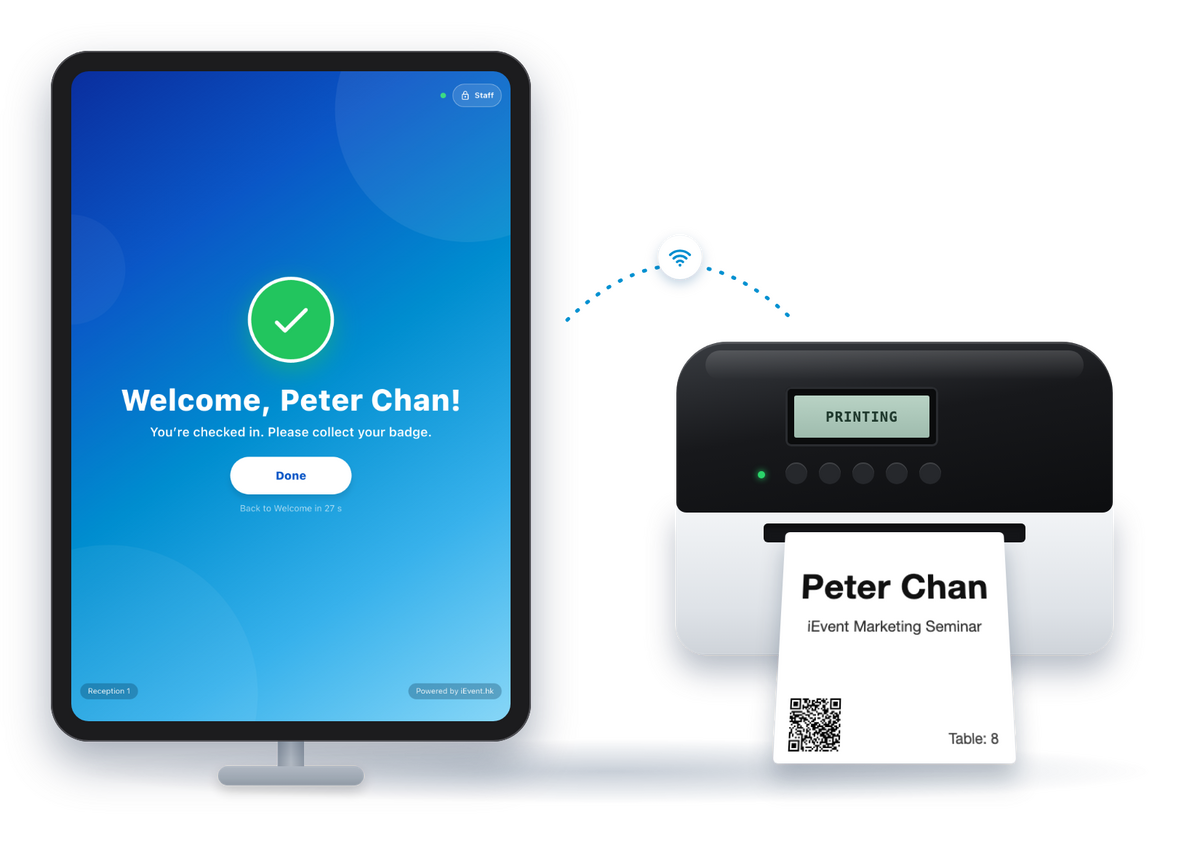
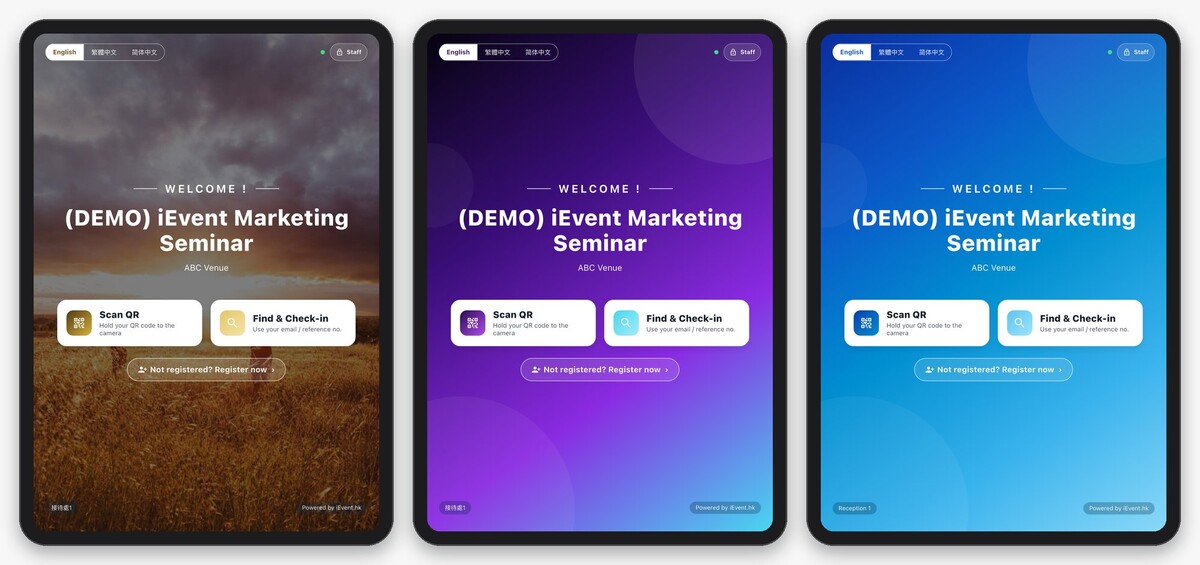
Upload your event artwork or a venue photo as the kiosk background.
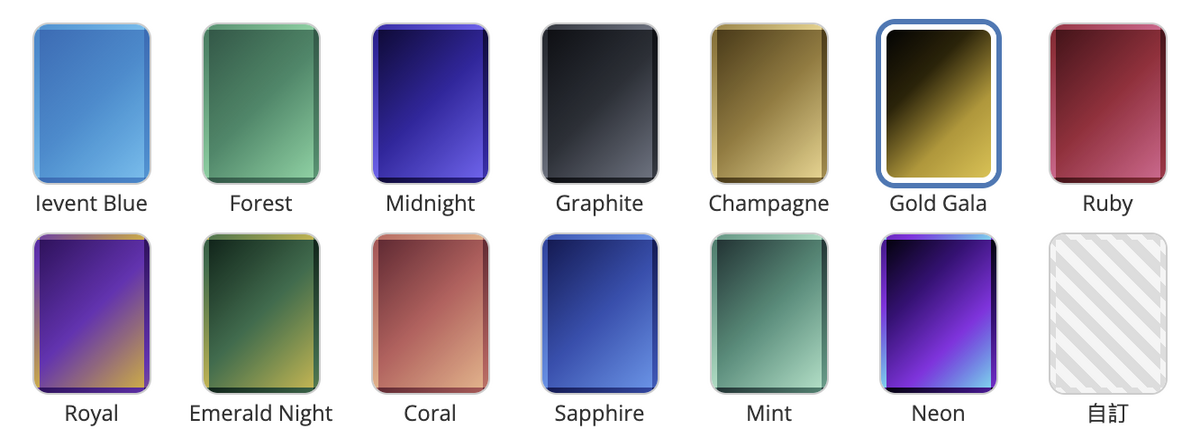
Pick a ready-made colour theme in one click.
Set your own colours, and hide "Powered by iEvent" if you like.
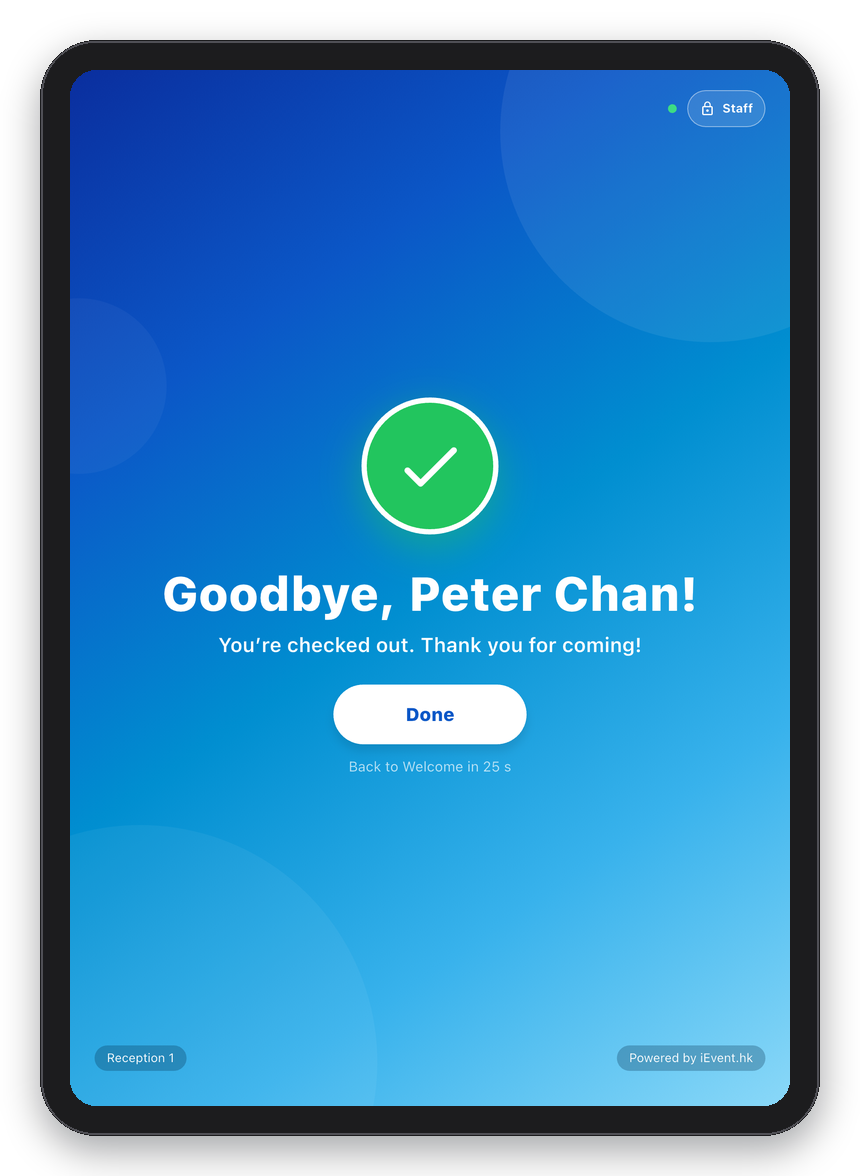
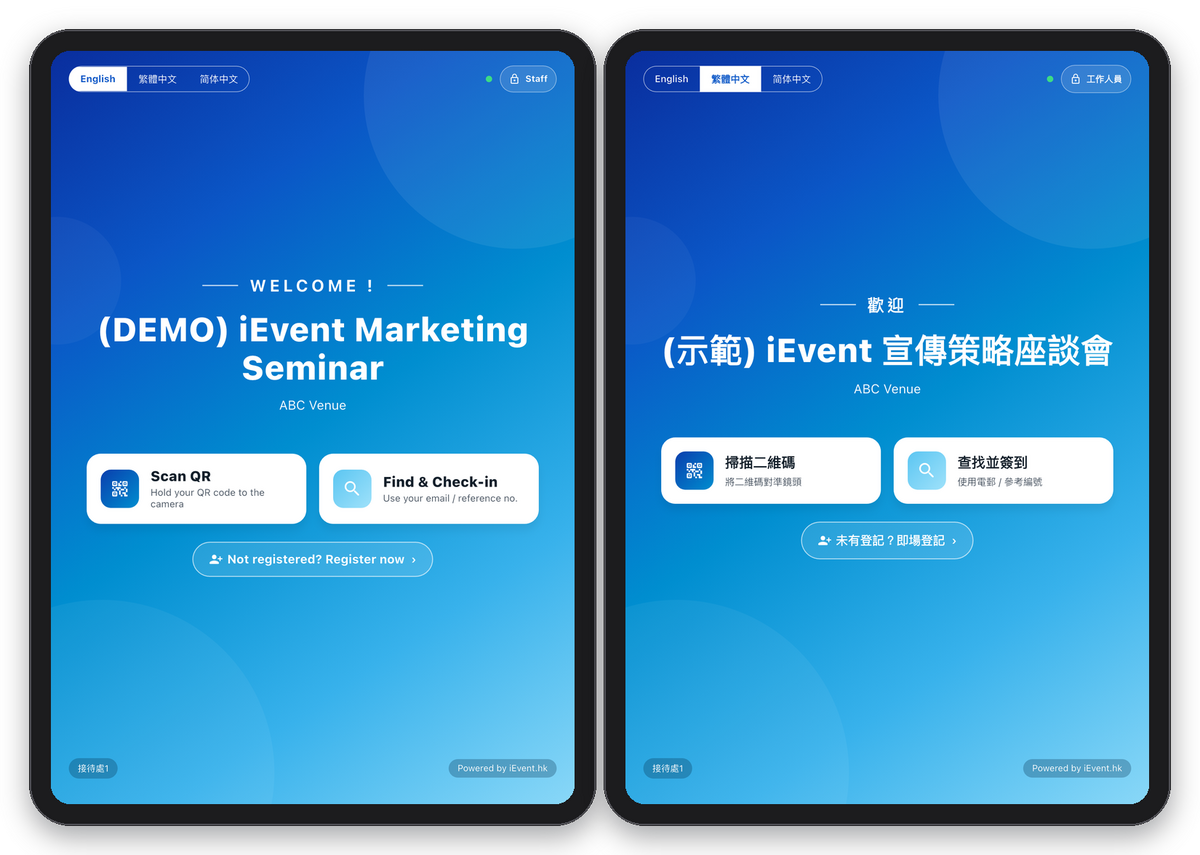
Set your own home screen subtitle (such as the venue) and Done screen message, in English and Chinese.
Staff can preset the session a kiosk checks in to. Without a preset, guests choose from the sessions they booked for today. Exhibition mode is supported.
Check-in opens shortly before the booked time slot. Guests who come too early or too late get a friendly message.
Try the whole kiosk flow before the event day. Test mode turns itself off the next day, so the real event isn't affected.
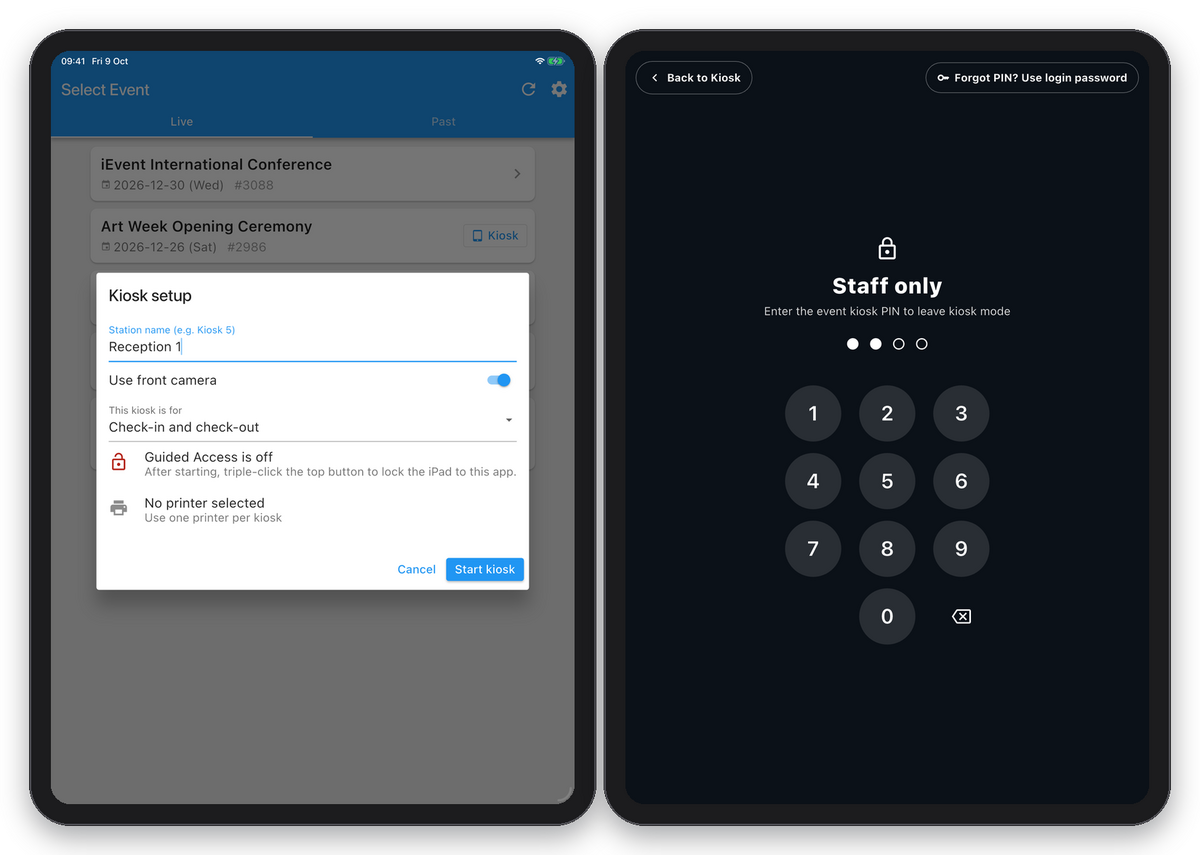
Each event can have its own kiosk PIN. If staff forget it, they can unlock with the check-in account's login password.
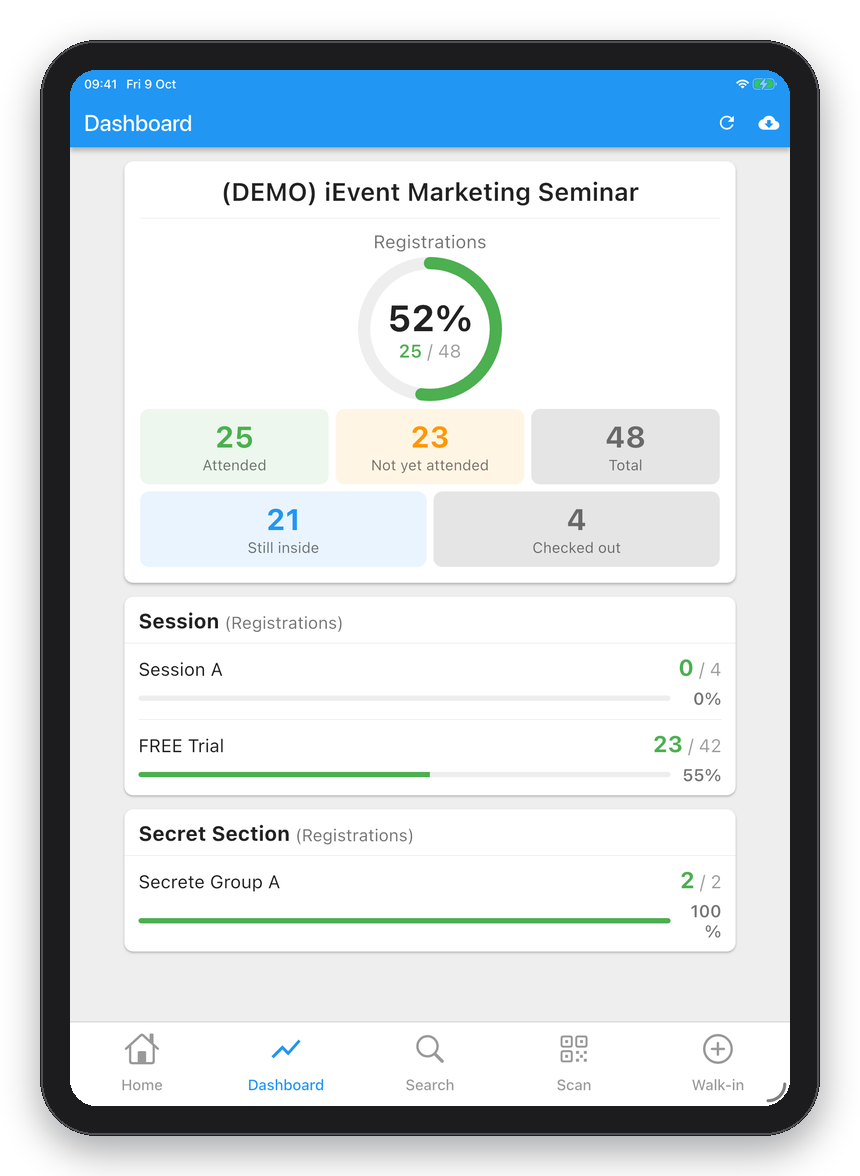
The admin panel shows when each kiosk was started, when Staff mode was opened, and how many badges were reprinted.
| 1. What equipment do I need for a kiosk? An iPad (iPadOS 16 or later), an iPad stand and an internet connection. To print name badges, each kiosk also needs a Brother Wifi label printer. |
| 2. Can kiosks and staff check-in be used at the same time? Yes. Both use the same attendance records, synced in real time. Let the kiosks handle most guests while your staff look after special cases. |
| 3. Do I need another app or account? No. Kiosk mode is built into the iEvent Check-in app. Sign in with the same check-in account and tap "Kiosk" on the event list to start. |
| 4. How many kiosks can I run at once? There is no limit. Each kiosk can have its own name (e.g. "Kiosk 5"), and usage is logged separately. We recommend one printer per kiosk. |
| 5. Can guests see other people's registration details? No. Guests must enter a full email or reference no. to find a registration, and email addresses are partly masked. The kiosk returns to the welcome page when it's idle. |
| 6. Can guests leave kiosk mode and use the iPad for something else? No. Leaving kiosk mode needs the staff PIN. We also recommend turning on iPad Guided Access to lock the iPad to the app. |
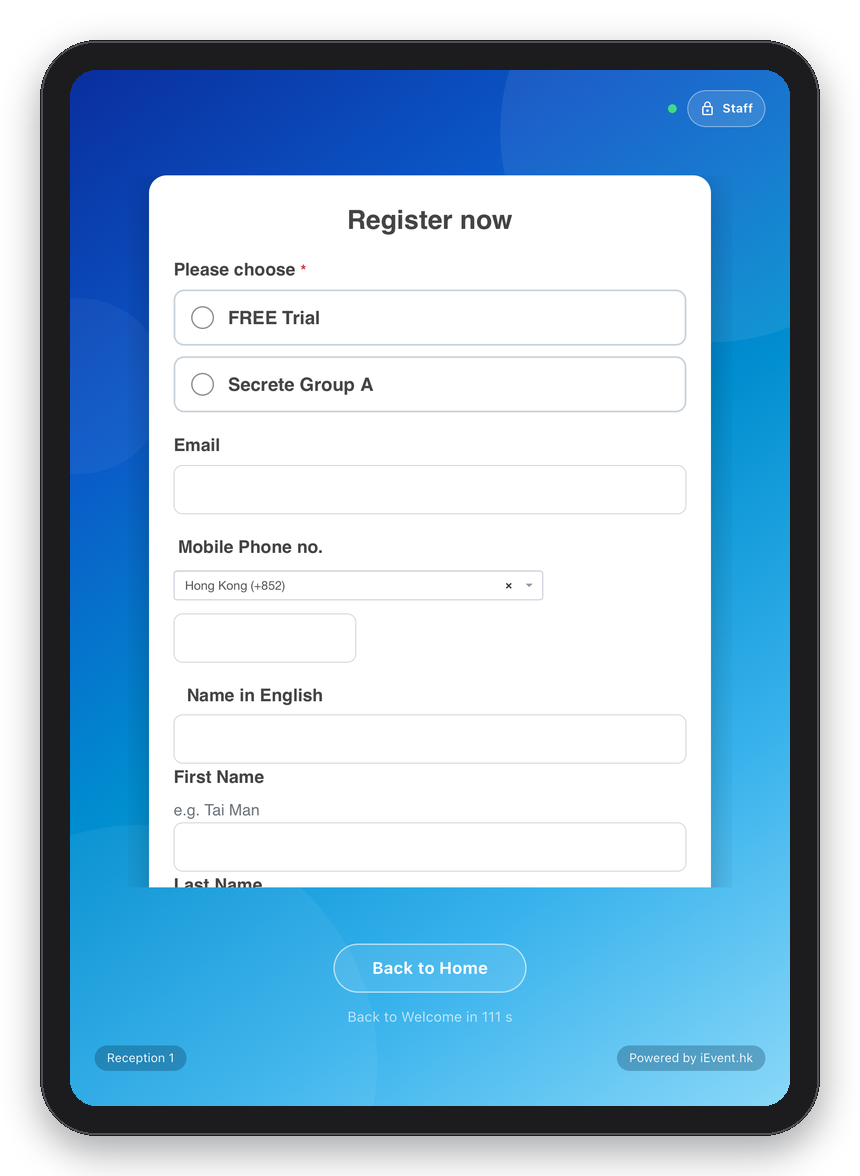
| 7. What if a guest doesn't have their QR code? Guests tap "Find & Check-in", enter their registered email or reference no., confirm their name and check in. |
| 8. Can companions check in together? Every guest, including companions, has their own QR code, so each one checks in and gets their own badge. |
| 9. What happens if the printer goes offline or runs out of labels? The kiosk first tries to find and reconnect to the printer by itself. If the badge still can't print, the guest is still checked in, Staff mode shows the last print problem, and staff can reprint the badge right away. |
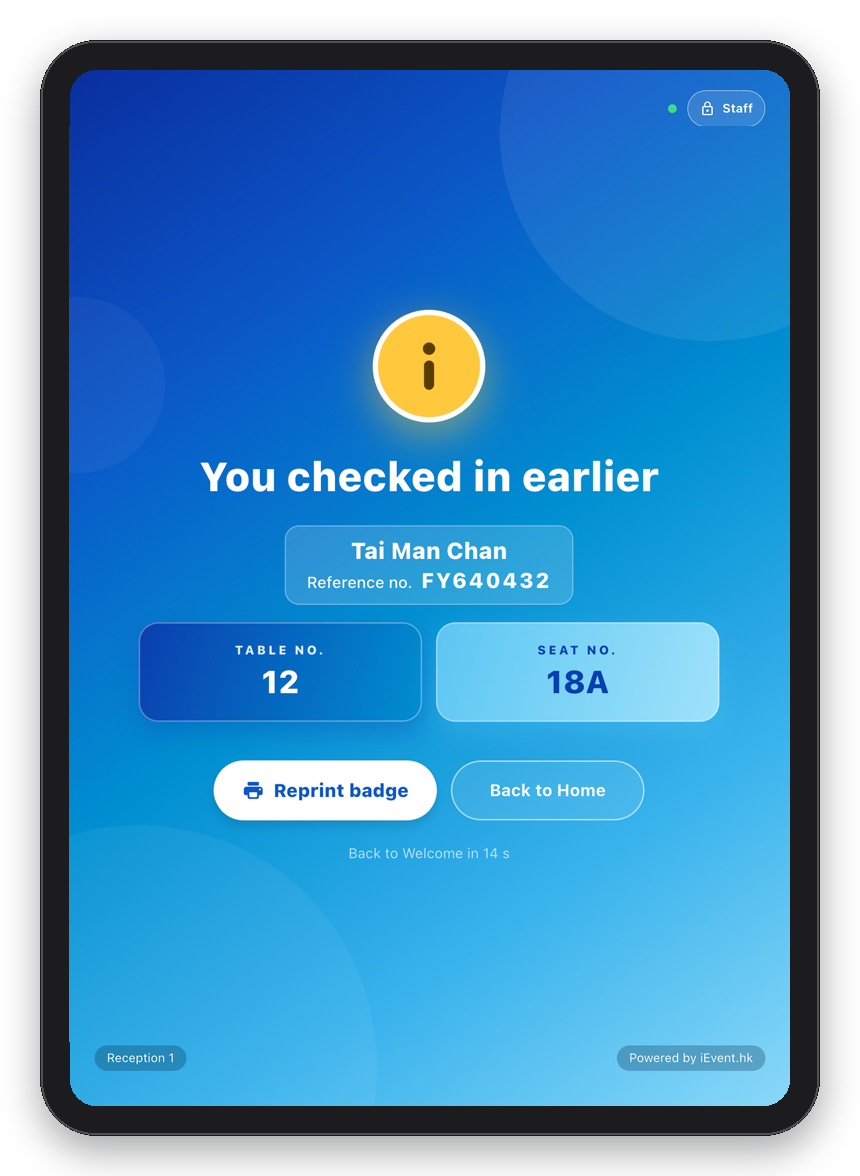
| 10. Can I change the kiosk colours or use our event artwork? Yes. Choose from 12 preset themes, set your own colours or upload a background image. You can also choose which fields the kiosk shows, such as table or seat no. |
| 11. My event has multiple sessions. Can I use the kiosk? Yes. Staff can preset the session a kiosk checks in to, so guests go straight to it after scanning. Without a preset, guests choose from the sessions they booked for today. |
| 12. Can I test the kiosk before the event? Yes. Staff mode has a Test mode that lets you try the whole check-in and printing flow before the event day. It turns itself off the next day. |